The best way to organize thousands of event photos is to build a workflow that separates storage, editing, search, and delivery. Use a predictable folder structure and filename convention, cull before exporting, preserve useful metadata, then move guest discovery to an AI-powered photo sharing gallery with face recognition.
For event photographers, the key distinction is simple: File organization helps you find a file, while photo search helps a guest find themselves. A folder called ‘Corporate_Event_2026’ can tell you where the images live. It cannot tell an attendee which 37 images contain them.
That is why modern event photo organization should be designed around two users: the photographer managing the archive and the guest trying to retrieve a handful of meaningful photos.
Why organizing event photos is harder than organizing a normal shoot
An event gallery is not just a large batch of images. It is a time-based record of people, sessions, locations, speakers, sponsors, teams, and spontaneous moments.
A conference photographer may capture keynote speakers and panels, sponsor booths and branded activations, networking and candid portraits, group photographs, awards and stage moments, headshots, behind-the-scenes content and multiple photographers shooting simultaneously.
Sports photographers face a similar problem. A tournament can generate thousands of frames across fields, courts, heats, teams, and age groups.
The organizational system therefore needs to answer two different questions:
- Where is this image stored?
- Who is in this image?
Folders, filenames, metadata, and keywords are excellent for the first question. AI face recognition is particularly useful for the second.
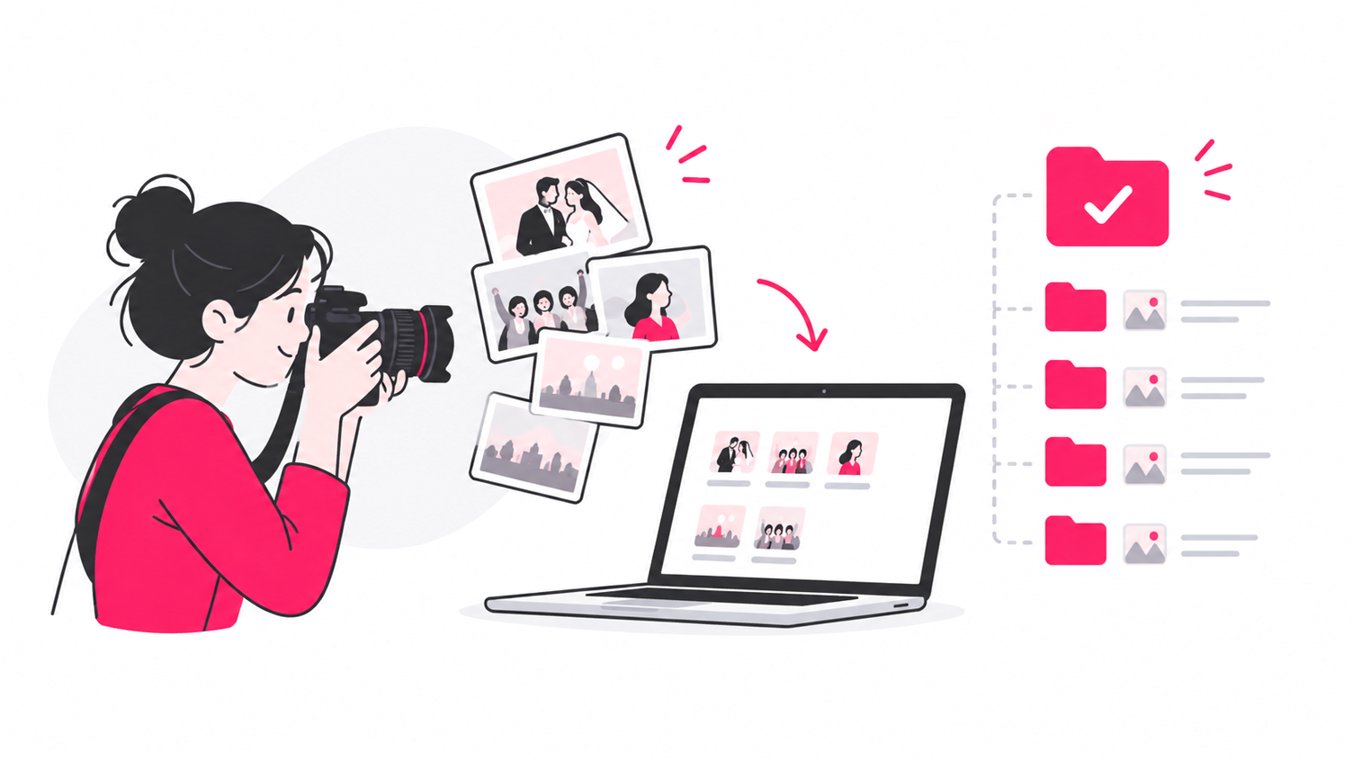
Step 1: Build a folder structure that follows the event lifecycle
Avoid creating a maze of folders based on every small detail. A practical structure should be predictable enough that another photographer or editor can understand it immediately.
A strong starting point is:
- 2026
- 2026-09-18_Client_Event_Name
- 01_RAW
- Camera_A
- Camera_B
- Assistant
- 02_CULL
- 03_EDITED
- 04_EXPORT
- Web
- High_Res
- Social
- 05_DELIVERY
- Gallery
- Client_Selects
- 06_ADMIN
- 01_RAW
- 2026-09-18_Client_Event_Name
The exact structure can vary, but the logic should remain consistent.
Keep RAW files separate from exports. Do not overwrite your source images simply because a client requests a different crop, resolution, or color treatment later.
Adobe Lightroom supports folders, albums, smart albums, ratings, flags, keywords, metadata, and filters, which makes this type of workflow easier to maintain at catalog level.
A useful rule: Folders should describe where a file belongs. Metadata should describe what the file contains. That distinction prevents your folder structure from becoming unmanageable.
Step 2: Use a filename convention that survives handoffs
Camera-generated filenames such as ‘DSC_48291.JPG’ are useful as original identifiers, but they are weak as a long-term event workflow.
A better convention combines the event date, client or event code, and sequence number.
For example: “20260918_ACME_CONF_0001.CR3”, “20260918_ACME_CONF_0002.CR3”, “20260918_ACME_CONF_0003.CR3”.
For exported files: “20260918_ACME_CONF_0001_WEB.jpg”, “20260918_ACME_CONF_0001_HIRES.jpg”
Avoid putting too much information into filenames. Names such as ‘speaker-john-smith-stage-main-hall-camera-a-final-v3.jpg’ become difficult to manage and create problems when details change.
Use filenames for stable identifiers. Use metadata and keywords for descriptive information.
Step 3: Cull before you try to organize everything
Culling is where a large event shoot becomes manageable.
Do not spend time adding detailed keywords to images you will never deliver. First remove obvious rejects, then identify the strongest frames, and only then invest in detailed organization.
A practical culling sequence is:
- Remove technically unusable frames.
- Group near-duplicates or burst sequences.
- Select the strongest expression or composition.
- Mark client-worthy images.
- Separate editorial, social, and delivery selects if needed.
- Edit the final selection.
- Export only the versions required for delivery.
This is more efficient than attempting to fully catalog every frame before deciding whether it deserves to survive the workflow.
Modern photo software can use flags, ratings, keywords, metadata, and smart collections to support this process. Lightroom, for example, can dynamically group images using rules such as rating, pick status, export status, and labels.
Checkout SnapSeek culling tool.
Step 4: Preserve metadata because it becomes search infrastructure
Metadata is not administrative clutter. It is searchable information attached to the image.
Useful event photography metadata includes:
| Metadata type | Example | Why it matters |
|---|---|---|
| Capture date | 2026-09-18 | Timeline searches |
| Camera | Canon EOS R5 | Multi-camera filtering |
| Lens | 70-200mm | Technical analysis |
| Location | Main Ballroom | Venue organization |
| Copyright | Studio Name | Rights management |
| Creator | Photographer Name | Attribution |
| Keywords | keynote, awards, networking | Content discovery |
| Description | CEO speaking on stage | Editorial context |
Adobe notes that metadata can include copyright, resolution, color space, keywords, descriptions, credits, and other IPTC information. Lightroom can also filter images by capture date, camera, lens, keywords, ratings, flags, and other fields.
For a professional event photography workflow, apply reusable metadata templates before or during import whenever possible.
Step 5: Tag what is useful, not everything you can imagine
Keywords are powerful when they answer real retrieval questions.
For an event, useful tags might include: ‘keynote’, ‘speaker’, ‘panel’, ‘networking’, ‘sponsor’, ‘awards’, ‘stage’, ‘headshot’, ‘VIP’, ‘team-photo’, ‘Toronto’, ‘conference-name’.
Avoid creating hundreds of hyper-specific tags that nobody will search.
A hierarchical keyword structure can help:
Event
├── Conference
├── Networking
├── Awards
└── Speakers

People
├── Executives
├── Speakers
└── Sponsors

Location
├── Main Hall
├── Ballroom
└── Registration
Keywording is especially useful when the photographer, editor, or client needs to retrieve images based on event context. It is not a substitute for person-level discovery.
Step 6: Understand the limit of filenames and folders
Imagine you have 4,800 final photographs from a three-day conference. A guest asks: “Can you send me every photo I’m in?”
A filename system cannot answer that question unless someone has already manually tagged that guest. A folder system cannot answer it either.
Even a carefully keyworded catalog may only tell you that an image contains a ‘speaker’ or ‘networking’ moment. It does not automatically solve the identity problem at scale.
This is where face recognition for event photos changes the workflow.
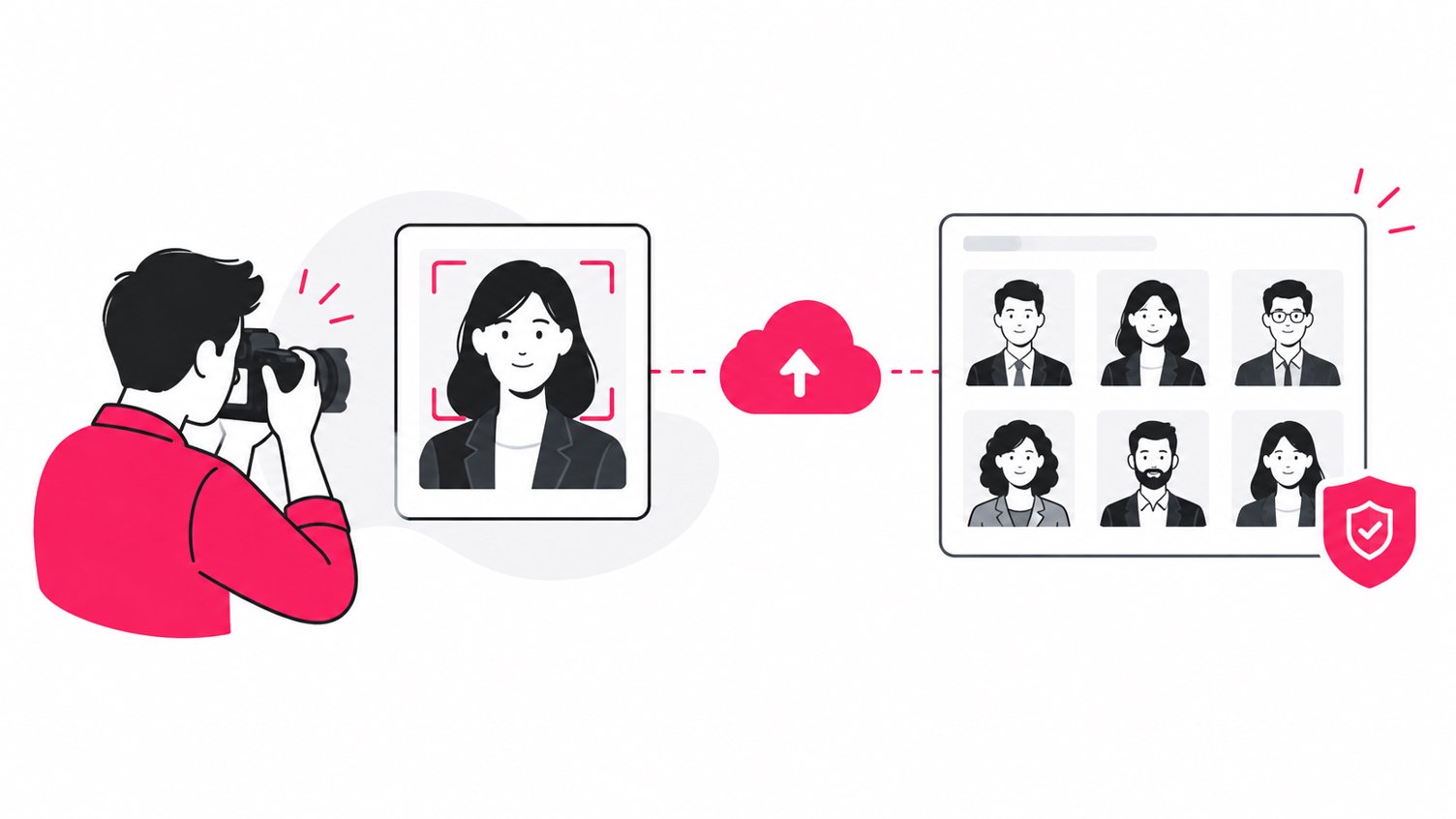
Instead of manually creating hundreds of person folders, a face recognition system can detect faces and group matching images around a guest’s search.
NIST’s face recognition evaluations also make an important point for professionals: recognition performance varies significantly by algorithm and image quality, and false matches and missed matches are real considerations.
That means face recognition should be treated as a powerful retrieval layer, not as an excuse to eliminate quality control.
Step 7: Use AI face recognition for guest-level photo discovery
This is the part of event photo organization that traditional file management cannot solve efficiently.
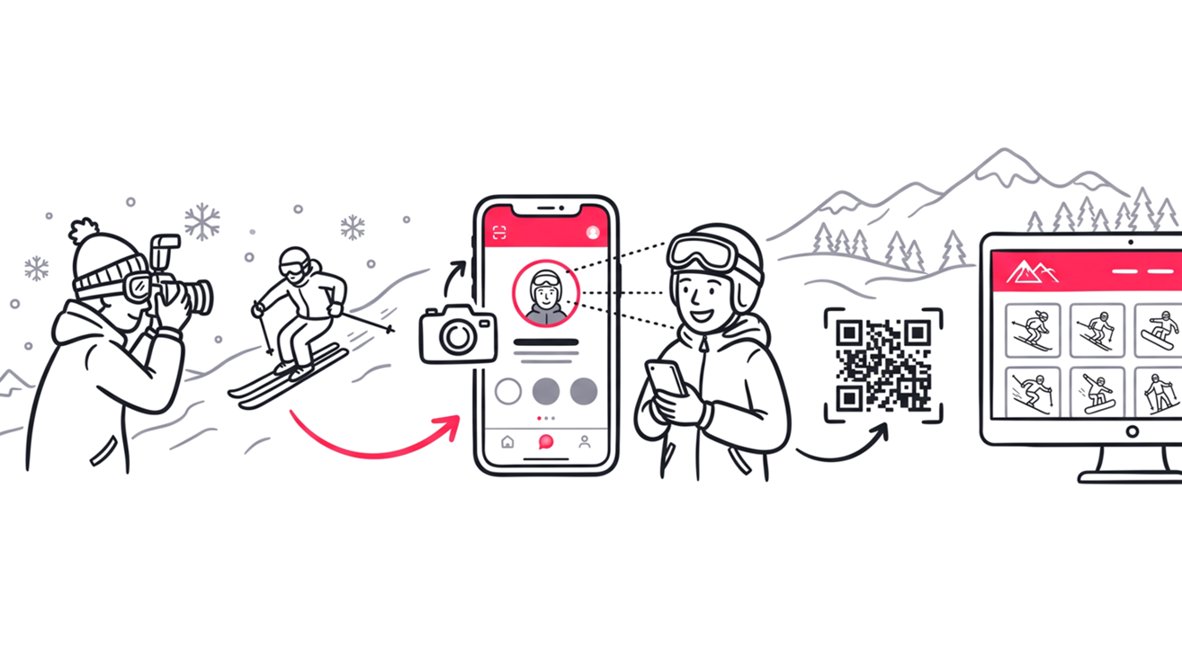
SnapSeek combines browser-based event photo sharing with AI face recognition, selfie search, QR access, multi-face search, high-resolution support, and customizable gallery options.
The workflow is straightforward:
- Upload the edited event photographs.
- Create the online event gallery.
- Give guests access through a link or QR code.
- Let a guest take or upload a selfie.
- Match that face against the event gallery.
- Return the photos in which that guest appears.
SnapSeek also supports multi-face search for up to five people at once, which is useful for group photos, family shots, teams, and networking groups.
The result is an important shift in the photographer’s workflow:
You organize the archive once. The guest performs the final search themselves.
Face recognition versus manual photo tagging
| Workflow | Manual tagging | AI face recognition |
|---|---|---|
| Initial setup | High | Low |
| Person-level search | Requires tagging | Automated matching |
| Large event galleries | Difficult to scale | Designed for large collections |
| Guest experience | Browse or request help | Self-service search |
| Group photos | Manual tagging | Multi-face matching |
| Photographer workload | High | Lower |
| Best use | Small curated sets | Large event galleries |
The goal is not to replace your cataloging system. The goal is to add a person-discovery layer on top of a well-organized photography archive.
Read how to speed up photo delivery at an event with SnapSeek.
Step 8: Export for the destination, not just the client
One of the easiest ways to create delivery chaos is to export one enormous batch and use it everywhere. Instead, define export presets around the destination.
Web gallery
Use optimized JPEGs that load quickly while retaining professional viewing quality.
High-resolution delivery
Create full-resolution files when clients or guests need printing or archival-quality downloads.
Social media
Create appropriately sized copies for the platforms or client channels that will use them.
Paid downloads
If you sell individual event photos, use a delivery workflow that separates previews from purchased high-resolution files.
SnapSeek supports high-resolution downloads and paid photo delivery, making the gallery capable of functioning as more than a static online album.
Step 9: Turn the gallery into a branded event experience
File organization happens behind the scenes. The gallery is where the client and guests judge the service.
A professional branded event photo gallery should make it immediately clear:
- Whose event is this?
- Who photographed it?
- Where should guests search?
- How do they download photos?
- How can they return later?
- What branding should they remember?
For corporate event photographers and sports photographers, this is particularly valuable because the gallery can reinforce the photographer’s brand after the camera work is finished.
SnapSeek offers customizable themes, white-label branding, QR-code access, custom links, and guest-friendly browser access.
For a deeper look at branded galleries, see how to create a branded online event photo gallery.
Step 10: Design for the “I am in this photo” moment
The real test of event photo organization is not whether your Lightroom catalog looks tidy. It is whether a guest can find their photos without asking you for help. That is especially important when the gallery contains thousands of images.
A useful event photo delivery flow looks like this:
Capture
   ↓
Backup
   ↓
Import
   ↓
Cull
   ↓
Edit
   ↓
Metadata + Keywords
   ↓
Export
   ↓
AI Face Index
   ↓
Branded Gallery
   ↓
Guest Search
   ↓
Download / Share
This workflow separates the photographer’s job from the guest’s search task. The photographer controls image quality, selection, metadata, and delivery. The technology handles repetitive discovery.
A practical event photo organization checklist
Before declaring an event gallery finished, check:
- RAW files are stored in a predictable event folder.
- Original files have been backed up.
- Unusable and duplicate frames have been culled.
- Final selections have been edited.
- Filenames follow one consistent convention.
- Copyright and creator metadata are present.
- Important event keywords have been applied.
- Web and high-resolution exports are separated.
- Gallery access has been tested on a phone.
- Guest photo search has been tested.
- Face recognition results have been spot-checked.
- Download permissions match the client’s requirements.
- The gallery reflects the photographer or studio brand.
The bigger idea: organize files for photographers, search photos for guests
A well-designed event photography workflow should not force one system to do every job. Your DAM or editing catalog is responsible for archival organization. Your folder structure handles storage. Filenames provide stable identifiers. Metadata and keywords create searchable context.
The guest-facing gallery has a different job. It needs to answer one question quickly: “Which photos am I in?”
That is why AI face recognition belongs in the delivery stage of modern event photography workflows. It complements professional organization instead of replacing it.
If you photograph conferences, weddings, festivals, school events, tournaments, corporate activations, or large social gatherings, the difference can be substantial. Instead of spending hours manually locating individual guests, you can give them a self-service route to their own images.
FAQ
How should photographers organize thousands of event photos?
Use a consistent folder hierarchy based on the event, separate RAW files from culls and exports, apply a predictable filename convention, preserve metadata, and use keywords for meaningful categories. For guest discovery, add an AI-powered gallery with face recognition.
Should I organize event photos by person?
Not usually as the primary folder structure. Creating individual folders for hundreds of guests becomes difficult to maintain. Use folders for the event workflow and use AI face grouping or face recognition for person-level discovery.
How do guests find themselves in thousands of event photos?
A face recognition photo sharing platform can let guests search an event gallery with a selfie or uploaded reference photo. The system matches the face against the gallery and returns relevant images, reducing the need for manual browsing.
Can face recognition replace photo culling?
No. Culling and face recognition solve different problems. Culling determines which images are worth keeping or delivering. Face recognition helps people find the images they are already in.
What is the best way to share event photos with guests?
For large events, use a branded online gallery that supports mobile access, QR codes, fast search, and person-level discovery. SnapSeek combines these capabilities with AI face recognition so guests can find their own photos without manually browsing the entire gallery.
Conclusion
Organizing thousands of event photos is not simply a matter of creating more folders.
The scalable approach is to give every layer of the workflow a specific job: folders for storage, filenames for identity, metadata for context, culling for quality, exports for delivery, and AI search for guest discovery.
That final layer is where event photo sharing becomes dramatically more useful.
With SnapSeek, photographers and event managers can turn a huge collection of edited images into a branded, searchable event photo gallery. Guests can access the gallery through the browser, use QR codes, search with face recognition, find group photos with multi-face search, and download the images they care about.
The result is a better-organized archive for the photographer and a much faster path to the right photos for every guest.
Ready to make large event galleries easier to manage and easier to search? Try SnapSeek for your next event photo delivery workflow.