SnapSeek is a browser-based event photo sharing platform that lets guests open a gallery through a QR code or link, then use AI face recognition to find photos they appear in. Photographers and organizers can manage private collections, control access, customize gallery branding, offer downloads and organize images without asking guests to install an app or create an account. The best setup depends on the event, the type of images being shared and how guests should access them.
Sharing photos well is not simply a matter of uploading files. A useful event photo workflow makes images easy to find, protects access where needed and gives guests a clear way to download or revisit their pictures.
What makes event photo sharing difficult?
After a wedding, conference, school activity or community event, images can quickly become difficult to navigate. A single gallery might contain hundreds or thousands of photos, and guests usually want a small subset: the pictures they are in, a group shot with friends or a particular moment.
Traditional delivery methods often create extra work:
- Shared folders: guests may need to scroll through a large collection or know which file to look for.
- Email attachments: sending files individually becomes impractical when there are many images.
- Social media albums: visibility, compression, platform accounts and download options may not suit every event.
- Manual tagging: photographers or assistants have to identify people and label images one by one.
- One-size-fits-all galleries: a public celebration, a school event and a paid photography service do not necessarily need the same access rules.
A good photo sharing workflow should reduce these points of friction without removing the photographer’s control over the gallery.
How SnapSeek works
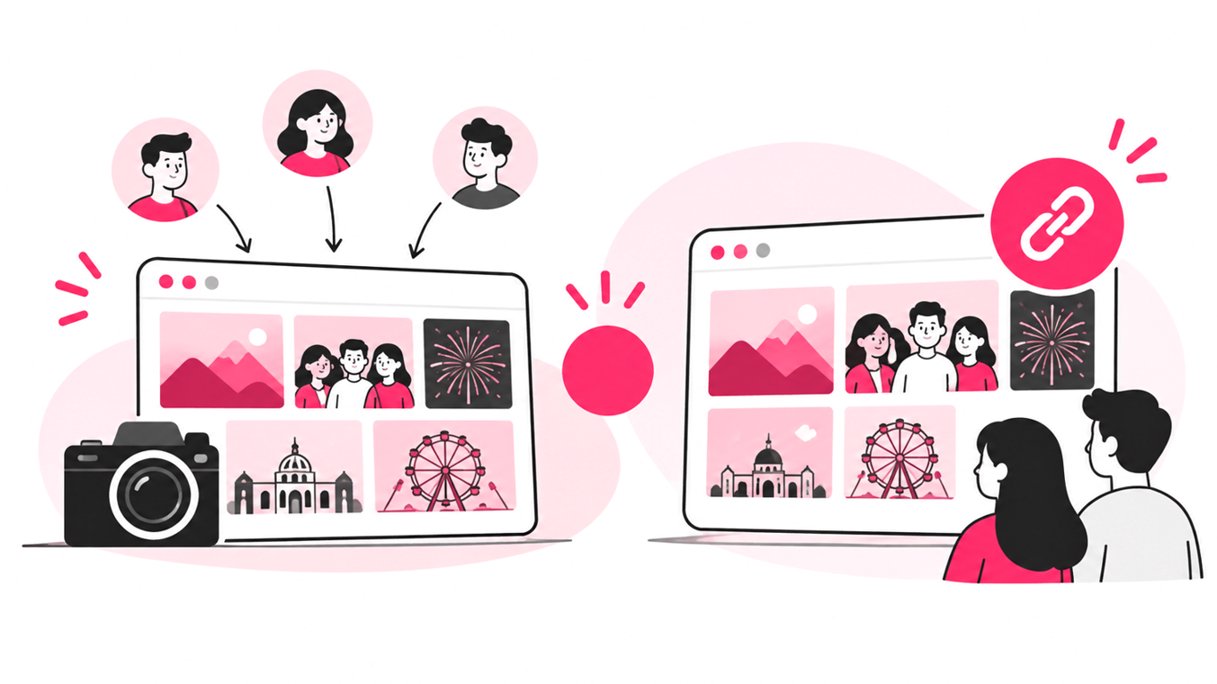
SnapSeek combines an online photo gallery with face-based photo discovery. A photographer or organizer creates a collection, uploads the event images and shares the collection link or QR code. Guests can open the gallery in a mobile browser and, where face search is enabled, submit a selfie to find matching images.
Check SnapSeek’s features page for more details on the available tools, including QR sharing, face search, guest visibility settings, branding controls, password protection, folders and download options.
1. Share one gallery through a QR code or link
A QR code gives guests a direct route to the gallery without making them type a long URL. Organizers can place it on welcome signs, table cards, event screens, registration desks or printed handouts. A shareable link is useful for follow-up emails, event websites and messages sent after the event.
This mobile-first approach fits how people commonly access online services. Pew Research Center reported that 91% of U.S. adults owned a smartphone in its 2025 survey, although device access and digital comfort still vary by audience.
Practical setup tips:
- Test the QR code from a printed version and from a phone screen.
- Add a short instruction such as “Scan to view event photos.”
- Make sure the code is large enough to scan from the distance guests will stand.
- Keep a typed URL available for guests who cannot scan a code.
- Decide whether guests should be able to browse every photo or only use face search to find their own images.
2. Use AI face recognition to help guests find their photos
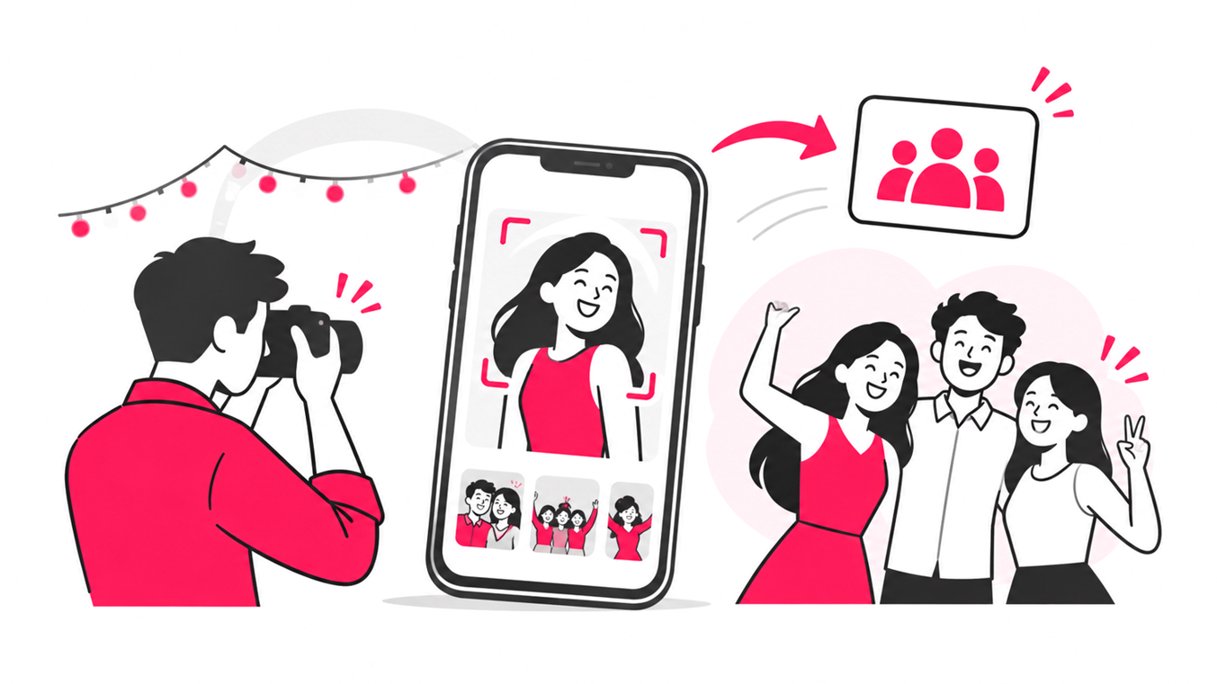
Face recognition can make large event galleries easier to search. Instead of scrolling through every image, a guest submits a selfie and the system compares it with faces detected in the collection. SnapSeek’s feature set also includes searching for multiple people together, which can help guests locate group photos.
This is useful when a photographer has covered a large crowd or several parts of an event. For example, a conference attendee may want photos from a networking session, while a wedding guest may want pictures with family members.
For a more dependable guest experience:
- Upload clear, properly exposed images where possible.
- Test search with a few representative photos before sharing the collection.
- Tell guests they can browse the gallery if a match is missing, where gallery settings allow it.
For a deeper explanation of the workflow, see How to use AI for Event Photo Discovery.
Features that support different event workflows
The right feature is the one that solves a real operational problem. Not every event needs every option.
| Feature | What it does | When it is useful |
|---|---|---|
| QR codes and shareable links | Opens the online collection in a browser | Venue signage, invitations, follow-up messages and event screens |
| AI face search | Helps guests find images containing them | Weddings, conferences, festivals and large group events |
| Multi-person search and face filtering | Narrows results to selected people or combinations | Family portraits, team photos and friend groups |
| Private collections and passwords | Adds controls around who can access a gallery | Client events, private celebrations and internal company events |
| Guest visibility and download controls | Lets the organizer configure how guests view or download images | Events with different audience or delivery requirements |
| Folders | Groups images into useful sections | Multi-day conferences, school activities and events with several locations |
| Custom logos, themes and messages | Makes the gallery experience fit a photography brand or event | Professional client delivery and branded event galleries |
| Watermarking | Applies a photographer’s chosen watermark to images | Brand visibility and preview workflows |
| Batch downloads | Helps users download multiple images together | Guests collecting a set of photos or clients archiving deliverables |
| Paid downloads | Supports selling digital images to guests | Sports, performances and commercial event photography |
| Lead capture forms | Requests selected guest details before access, when enabled | Follow-up communication or consent-based marketing workflows |
| Live slideshow | Displays images as a presentation | Reception screens, event displays and highlight moments |
| Collection expiration controls | Helps manage how long a gallery remains available | Setting expectations for delivery and storage |
Use cases: matching the setup to the event
Weddings and private celebrations
Wedding galleries often include candid moments, portraits, family group shots and dance-floor photos. QR signage can help guests access the collection, while face search can reduce the time needed to find individual pictures. A couple or planner can also use folders to separate ceremony, reception and other parts of the day.
For private events, decide who should have access before distributing the link. A private collection or password can add a layer of control, but the link should still be shared thoughtfully.
For a more detailed workflow, read Premium Wedding Photo Sharing: Guide for Luxury Events.
Corporate conferences and networking events
Conference photographers may capture keynote sessions, sponsor activations, breakout rooms and networking moments. Organizing images into folders makes the collection easier to navigate, while a QR code on signage can give attendees a simple route to the gallery.
Custom branding and links to a company or photographer website can make the gallery feel consistent with the event identity. If collecting attendee details, use a clear explanation of what is being collected and how it will be used.
Sports, performances and school events
Sports tournaments, recitals and school events can produce large numbers of similar-looking images. Face search can help attendees or families narrow the collection, while folders can separate teams, sessions or event days.
These settings need particular care with privacy. Before uploading images of minors, confirm that the organizer has the necessary permissions and that the gallery’s access rules match the school’s or organization’s policies.
Festivals, tours and public events
For festivals and tours, guests may be moving between locations and may not remember a photographer’s website after the event. QR codes on signs, tickets or follow-up materials provide a direct path back to the gallery. Face search can help visitors find their own pictures in a collection that covers many people and moments.
If you photograph across several stops or days, create folders that reflect how attendees remember the experience, such as date, location or activity.
Event photographers selling digital downloads
Some photographers want to share previews while charging for high-resolution files. SnapSeek offers paid downloads feature that can show previews and deliver original photos after purchase. This can be relevant to sports events, performances and other high-volume photography settings where guests choose and purchase their own images.
A practical workflow for sharing photos with SnapSeek
Use this checklist to plan the delivery process before guests arrive.
- Create a collection: Name it clearly and decide whether it represents one event, one day or a particular group.
- Set access rules: Choose whether the collection should be private, password-protected or accessible through the link. Configure guest visibility and download permissions.
- Organize the images: Upload the approved photos and use folders where they make the gallery easier to navigate.
- Configure face search: Confirm the selfie-search experience and any multi-person options you intend to use.
- Customize the gallery: Add your logo, theme, guest message, website or social links if appropriate.
- Place the QR code where people will see it: Use signage, screens, table cards or follow-up communications based on the event format.
- Explain the basics: Tell guests how to open the gallery, find photos and request help if they cannot locate an image.
- Review the collection after the event: Check access settings, confirm the delivery message and communicate how long the gallery will remain available.
For more workflow ideas, explore How to Speed Up Photo Delivery After an Event.
SnapSeek compared with common photo delivery methods
| Method | Main advantage | Common limitation |
|---|---|---|
| Email attachments | Familiar and direct for a few images | Difficult to manage for large galleries |
| General cloud folder | Convenient for storing many files | Guests may need to browse manually; access depends on folder setup |
| Social media album | Easy to distribute to an existing audience | Not always suitable for private access, original downloads or client branding |
| Manually tagged gallery | Can provide curated results | Requires ongoing tagging effort |
| SnapSeek collection | Combines browser access, QR sharing, face search and configurable gallery features | One-way photo sharing |
No single method is best for every event. A small private dinner may need only a simple folder, while a multi-day conference or wedding with hundreds of guests may benefit from searchable photo delivery. Choose based on gallery size, privacy expectations, download needs and the amount of manual work your team can support.
FAQ
What is the easiest way to share event photos with guests?
A browser-based software like SnapSeek where the gallery can be shared through a QR code or link is often convenient because guests can open it on their phones. For large collections, face search can help guests find relevant photos without scrolling through every image.
Do guests need to download an app to use SnapSeek?
No. With SnapSeek, guests can open collections through a browser using a QR code or direct link, without downloading an app or creating an account.
Can I use SnapSeek for private event photo sharing?
SnapSeek allows private collections and optional password protection. Organizers should configure access controls and set-up password before sharing the link and verify that the settings meet the event’s privacy requirements.
Can photographers sell event photos through SnapSeek?
SnapSeek has a paid-download feature for selling digital photos. With this feature, photographers can sell digital photos to guests through the gallery.
How long do photos stay available on SnapSeek?
SnapSeek has one-year storage by default, with options to extend gallery availability.
Conclusion
Effective event photo sharing comes down to three things: make the gallery easy to reach, make relevant images easy to find and set clear expectations about access and privacy. QR codes simplify entry, AI face search can reduce manual browsing, and folders, branding and download controls help adapt the workflow to different events.
SnapSeek brings these tools together in a browser-based gallery, but the best results come from matching the settings to the people and purpose of each event. Explore SnapSeek’s features, test the guest journey before the event and choose a photo-sharing workflow that is practical for both guests and the team delivering the images.