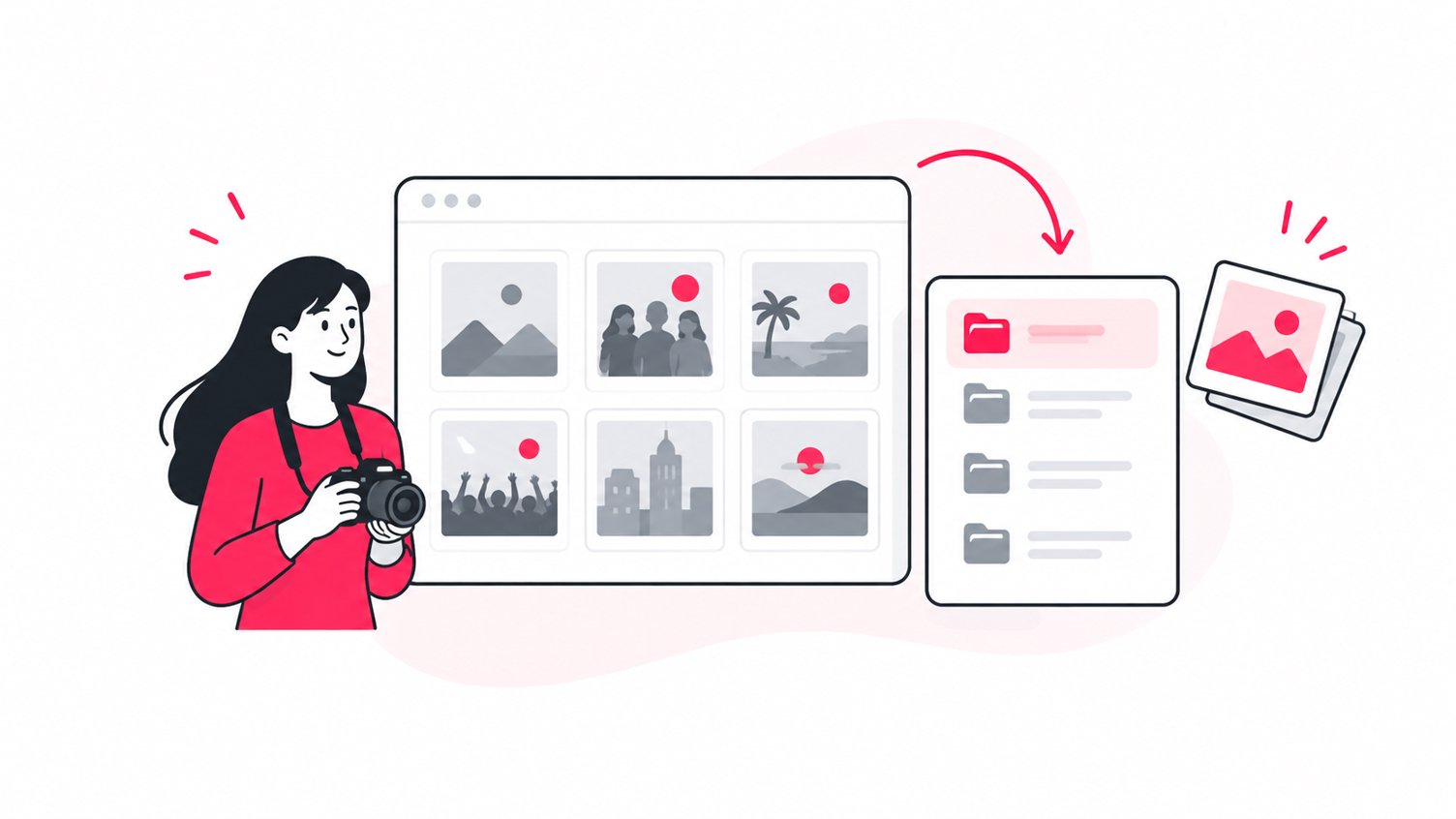
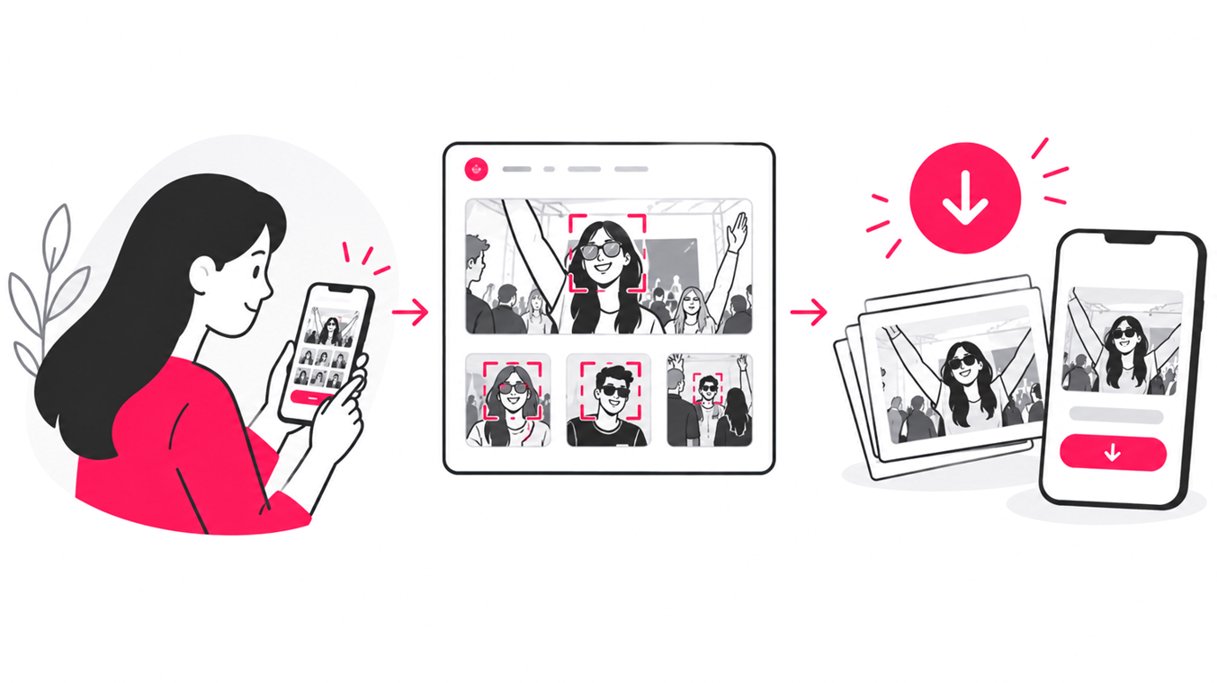
The easiest way to download event photos is to open the official gallery, find the images you appear in, and save the image files directly to your device. With SnapSeek, guests can scan a QR code or open a shared link, use a selfie or reference photo to find matching event pictures, and download the photos they want from a mobile browser without installing an app.
For guests, a useful photo-sharing experience means getting from “Where are my photos?” to “Saved” without unnecessary steps. For photographers and event organizers, that means planning photo discovery, download quality, and access instructions as part of the delivery workflow.
Why downloading event photos can be frustrating
After a wedding, conference, graduation, sports event, or company party, guests may receive a link to hundreds or thousands of images. Finding their own pictures can be harder than expected.
Common problems include:
- Endless scrolling: Guests inspect thumbnails one by one.
- Lost links: The gallery URL gets buried in email or group chats.
- Confusing download controls: Guests are unsure how to save the full image.
- Mobile friction: A desktop-focused workflow can be awkward on a phone.
- Quality concerns: Screenshots and social media saves may not preserve the original file.
- Privacy concerns: Guests may not want to browse a gallery full of strangers.
A good online photo-sharing workflow makes the gallery easy to open, photos easy to find, and downloads easy to complete.
How SnapSeek helps guests find and download event photos
SnapSeek is an online event photo-sharing platform that helps guests discover photos using face recognition. Instead of manually browsing the entire collection, guests can use a selfie or an available reference photo to search for images that include them.
The guest workflow is simple:
- Open the event gallery: Scan the event QR code with your phone camera or tap the link shared by the organizer.
- Find your photos: Follow the gallery prompts to take a selfie or use a suitable reference photo, where available.
- Review the results: Check the matching images and select the photos you want to keep.
- Download the images: Use the gallery’s download controls to save the available files.
- Confirm the files saved: Check your Photos app, Downloads folder, or file manager.
Guests can access SnapSeek in a web browser without installing a dedicated mobile app. For a full walkthrough, read How to Use SnapSeek for Effortless Event Photo Sharing.
Step 1: Open the correct gallery link
Use the official URL or QR code provided by the photographer or organizer. If you have left the venue, check the event follow-up email, text message, event website, or group chat.
Organizers should share the gallery link in a channel guests can revisit later. A short instruction such as “Open the gallery to find and download your photos” is more useful than sending a link without context.
Step 2: Search instead of scrolling
Traditional galleries can be manageable for a small event, but become harder to navigate as the collection grows. Face-based search gives guests another way to find relevant images.
On SnapSeek, follow the on-screen instructions to take a selfie or upload a suitable reference image. A clear, well-lit photo with the face visible is a good starting point.
Face matching is helpful, but it is not infallible. Lighting, face angle, occlusion, and image quality can affect results. If an important photo is missing, try another clear reference image or contact the event photographer. Learn more in How to Use Visual Search to Find Your Event Photos Instantly.
Step 3: Download the actual image file
Use the gallery’s download option rather than taking a screenshot. A screenshot captures the screen and may reduce resolution or include interface elements. Downloading the image file is better when you want to print, crop, or keep a high-quality copy.
Available options depend on the gallery settings. Some photographers also offer [paid downloads] (/blog/monetize-event-photography-downloads), so check the collection’s terms before purchasing.
Step 4: Find the downloaded files
The save location varies by device and browser.
| Device | Where to check |
|---|---|
| iPhone or iPad | Photos app or Files app, depending on the download action |
| Android phone or tablet | Photos/Gallery app or the Downloads folder |
| Windows computer | Browser download list or Downloads folder |
| Mac | Browser download list or Downloads folder |
If a file is not where you expected, open the browser’s recent downloads and confirm that the download finished. Browser menus and save behaviour can vary by operating system and settings.
Best practices for a smooth guest photo-sharing experience
The guest experience starts before the gallery link is sent. Photographers and planners can prevent confusion by making access and download instructions obvious.
Use QR codes at the event
A QR code connects an in-person event to its online gallery without requiring guests to type a long URL. Place it on welcome signage, table cards, registration desks, event programmes, or venue screens.
Keep the code large, high-contrast, and easy to scan. Test it from a normal viewing distance before the event begins. Add a clear call to action such as “Scan to find your photos.”
For more ideas, read How to Share Event Photos With Attendees Using a QR Code.
Send the link after the event
Not every guest will scan a QR code during the event. Some leave early, have a low battery, or prefer to browse later.
Share the same official gallery link in a follow-up email or group message. Explain how guests can search and download their pictures, and clarify whether downloads are free or paid. Avoid sending several links without saying which one is the correct collection.
Design for mobile access
Guests often use their phones to find and save event photos. Pew Research Center’s 2025 survey found that 97% of U.S. adults under 50 and 78% of adults aged 65 and older own a smartphone. These figures do not measure photo-gallery usage, but they reinforce the importance of mobile-friendly delivery.
Test the complete workflow on iPhone and Android devices. Check the QR code, search instructions, image preview, download control, and final save location. When possible, test on mobile data as well as venue Wi-Fi.
Comparing event photo delivery methods
The best option depends on gallery size, privacy needs, budget, and how much effort guests should spend searching.
| Method | How guests find photos | Main consideration |
|---|---|---|
| Email attachments | Open each attachment | Works for a few images, but not large collections |
| Shared cloud folder | Browse folders and thumbnails | Guests may need to search manually |
| Social media album | Browse posts or album images | Convenient for sharing, but not ideal for original files or private delivery |
| Standard online gallery | Browse or use available filters | Discovery depends on the gallery’s search tools |
| SnapSeek | Open a link or scan a QR code, then use face-based search | Helps guests find relevant images, although matching may miss some photos |
A small dinner with 20 edited images may be easy to manage with a simple link. A wedding, conference, festival, or school event with many attendees benefits from a workflow built around photo discovery and mobile downloads.
A photographer’s checklist for fewer download problems
Before sharing the gallery, photographers and organizers should:
- Upload the final edited images and confirm the upload has completed.
- Test the gallery link and QR code on a phone.
- Check which images guests can view and download.
- Confirm whether downloads are free, restricted, or paid.
- Write a short message explaining how to search and save images.
- Tell guests how long the gallery will remain available, if an expiry applies.
- Provide a contact route for missing photos or broken links.
- Keep a separate backup of the final image files.
Photographers who want a more polished presentation can also read How to Create a Branded Online Event Photo Gallery.
FAQ
How do I download event photos to my phone?
Open the official gallery link or scan the event QR code, find the photos you want, and tap the gallery’s download control. Check your Photos app or Downloads folder for the saved files.
How can I find my photos in a large event gallery?
Use the gallery’s search tools. SnapSeek supports face-based photo search, allowing guests to use a selfie or an available reference photo to find images that include them.
Do I need an app to download photos from SnapSeek?
No dedicated app installation is required to access SnapSeek through a supported web browser. Open the shared gallery link or scan its QR code, then follow the on-screen instructions.
Will downloading an event photo reduce its quality?
Downloading the actual image file preserves the resolution of the file supplied for download. A screenshot, compressed preview, or social media copy may have lower resolution than the original photograph.
What if SnapSeek cannot find one of my photos?
Try a clear selfie or suitable reference photo, then review the results. If a photo is still missing, contact the event photographer or organizer.
Are event photos always free to download?
No. Download terms depend on the photographer, event, and gallery settings. Some collections offer free downloads, while others may charge for selected images. Check the terms shown in the gallery.
Conclusion
Guests should not have to search through hundreds of unrelated images just to save a great memory. A smooth photo-sharing workflow combines clear access instructions, mobile-friendly browsing, useful search tools, and straightforward downloads.
For photographers and event planners, share the gallery link in more than one place, test the download process before delivery, and explain what guests should do if a photo is missing. SnapSeek helps streamline the experience with QR-code access, browser-based galleries, and face-based photo discovery.
Ready to make event photo sharing easier? Explore SnapSeek and give guests a simpler way to find and download the moments they want to keep.